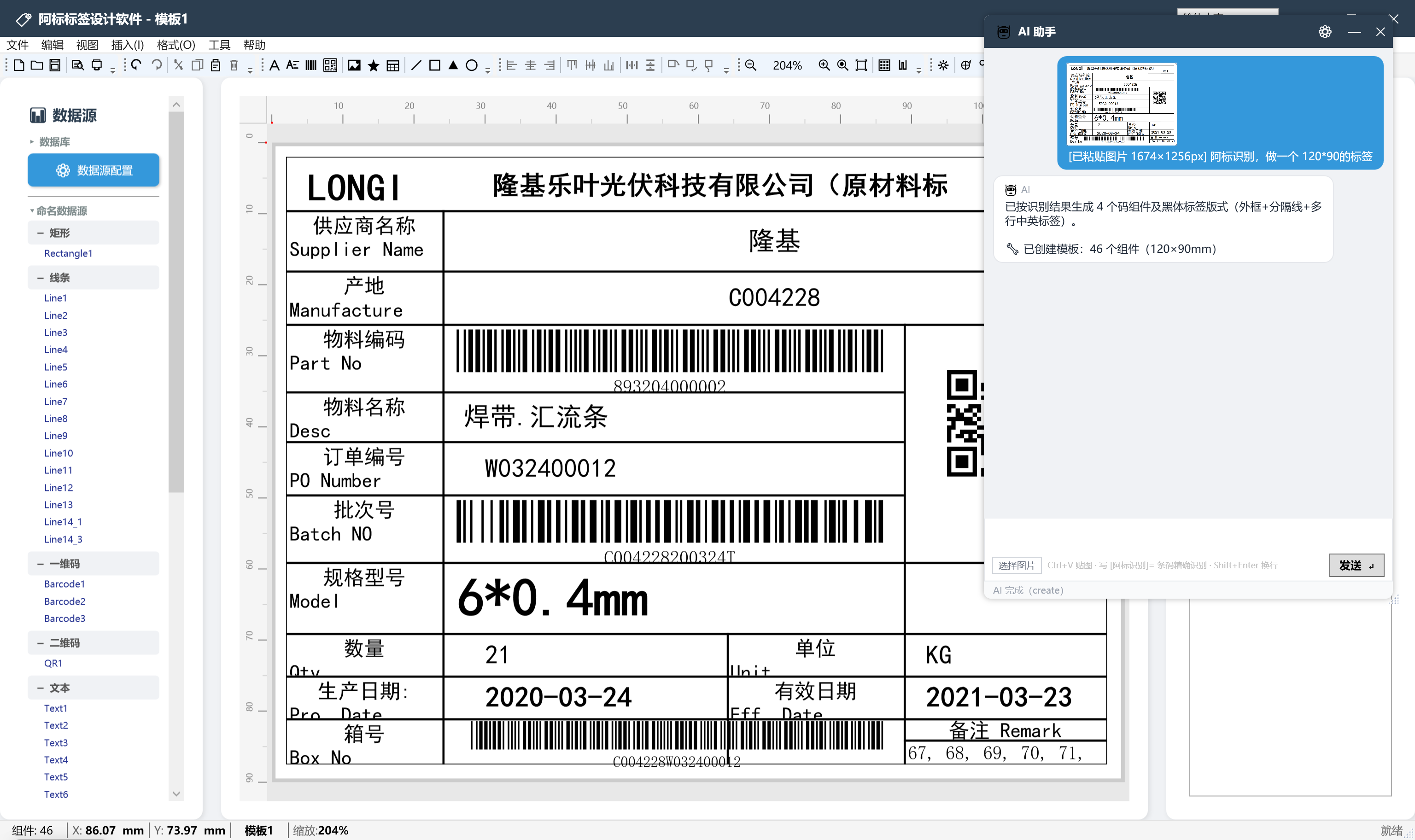
A customer sends a screenshot of a label — or you have an old label with no source file? Hand the image to the built-in AI assistant: it first reads the fields on the image, then generates an editable template. Barcode content is decoded by the built-in recognizer instead of being guessed by the model.
Only what is actually shipped — no marketing fiction.
Drop a label screenshot into the chat. The vision model reads the fields on the image (product name, spec, model, lot number, barcode content and more), lists them, then places text, barcodes and QR codes onto the canvas to produce a template you can edit directly. No more measuring and retyping field by field.
This is where “image to label” usually falls apart: a large language model cannot read the byte content of a barcode, so the digits look right but scan wrong. aBiao decodes barcodes and QR codes with its built-in recognizer first, then hands the real content to the AI. Type “recognize codes” in your message to trigger it.
No digging through property panels. Just say “make the product name 14pt bold”, “move this barcode down 2 mm” or “take the lot number from the lot_no column”, and the assistant edits the template. Every step goes onto the undo stack.
The assistant can see the data source and columns bound to the current template, so the field mappings it suggests are real column names, not invented ones. For complex logic it can write the formula or C#/VB script and apply it straight to the component.
Pick the “DEEPSEEK Web” or “MiMo Web” channel: log in once with your own account. No API key to buy, no top-up — you use the quota you already have. No account yet? Register for free on the login page.
If data must not leave your network, point it at a local Ollama instance. The whole pipeline runs on your own machine or intranet: no per-call fees and no data leaving the plant. Pull a vision model for image-to-layout use.
Settings are remembered per provider.
Do not want to buy an API key? Use this channel: log in once with your own account inside aBiao’s built-in browser window, then chat directly at no extra cost. Your quota is whatever that site already gives you.
Note: this channel drives the vendor’s web UI, so it cannot read images; it may also break temporarily if that site changes its front end. Switch to an API channel in that case.
Image-to-layout requires this path (pick a vision model: look for v / vl / vision / omni in the name, such as glm-4.6v-flash, qwen-vl-plus or Qwen3-VL-8B). Most vendors offer free quota or new-user credits, and aBiao ships a built-in guide (“where to get free quota / where the key is”) with one line per vendor. Start with a small model to control cost.
When data must not leave your network, attach a local Ollama server. Everything runs on your own machine or intranet with no per-call cost and nothing transmitted outside.
Nothing to read first — install and try.
Click the AI button in the main window. The settings panel lets you change provider and model at any time.
For zero cost pick “DEEPSEEK Web” and log in once via “Log in / Open window”. For image-to-layout pick an API provider and paste your key — the built-in guide tells you where to get it.
Drag a label screenshot into the chat, or simply say what you want. To reproduce barcodes exactly, include the “recognize codes” keyword in your message.
The difference shows up in the repetitive, error-prone steps.
The zero-cost channel needs no API key — just log in once with your own account.